Adding Music to your Envisage Media Player
The Envisage Media Player allows you to play background music through your TV screen, which can either be in the form of MP3 files or a radio streaming link. If a piece of media or a patient call announcement comes through, that will play instead of the background music.

If you wish to play music, either via MP3 or radio stream, it is up to your own organisation to ensure that you have the relevant licence to do this.
Numed has a collection of royalty-free music available to download from https://downloads.numed.co.uk/Support/EnvisageTools/RoyaltyFreeMusic.zip if required.
To get the Envisage Media Player to work with background music, you will need to know the IP address of the media player. If you do not know this, please contact Numed support via the live chat on this page.
You can only add or update music from within the The URL to add or update music of your system is http://<IP address>:8999/configure, so if your IP address of your media player is 192.168.0.1, then the status screen IP will be http://192.168.0.1:8999/configure. Once you have the IP address loaded, follow the steps below to get the background music uploaded.
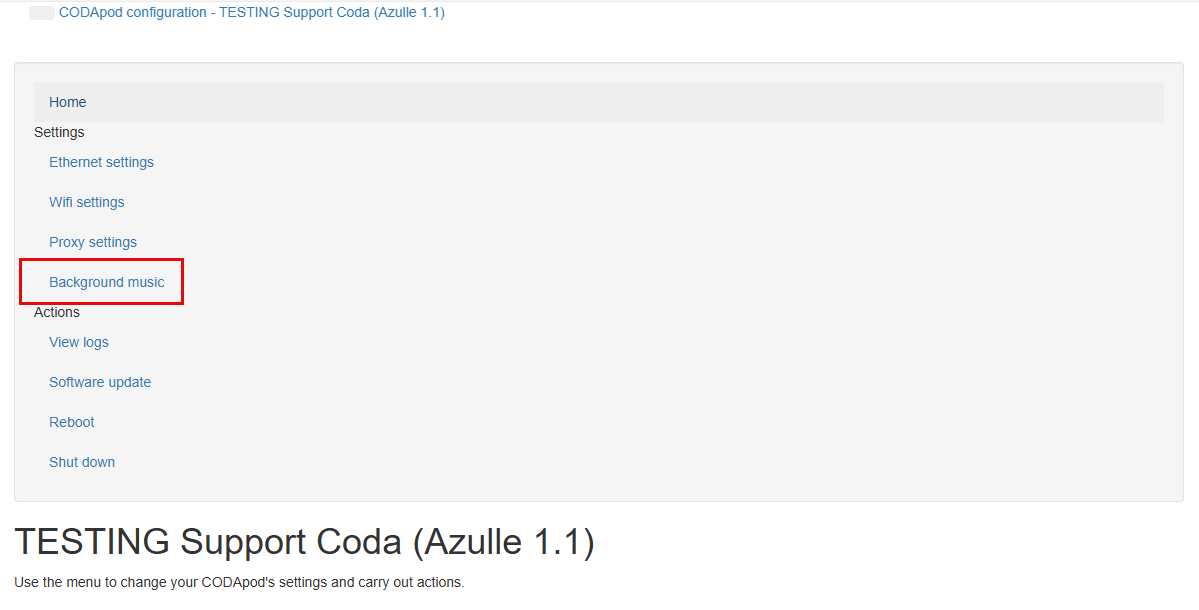
Click Background music
Choose between the Streaming URL or Files
Streaming URL
Files - for use with MP3 files
Streaming URL
Enter the full. URL of the streaming link, including https:// and then click Update, the radio will start playing immediately.
Files - for use with MP3 files
- Either drag and drop the files into the grey box or click browse - if using drag and drop go to step x once done
- Navigate to where you've saved your Music MP3 files on the PC
- You can select each file individually or press CTRL+A to select all, then click Open
- Wait for all the files to upload correctly and go green before clicking Update, the music will start playing automatically.
If you experience any issues playing background music through your Envisage Media Player, please contact Numed support via the live chat on this page.
Join Remote Support
Join live Chat
You can chat to one of our technical support team Monday – Friday 8.00am – 5.30pm. |