CodaSign Guide Part 3 - Creating and Managing Your Playlists
Selecting and Creating a Playlist
Playlists control which media is shown on your displays.
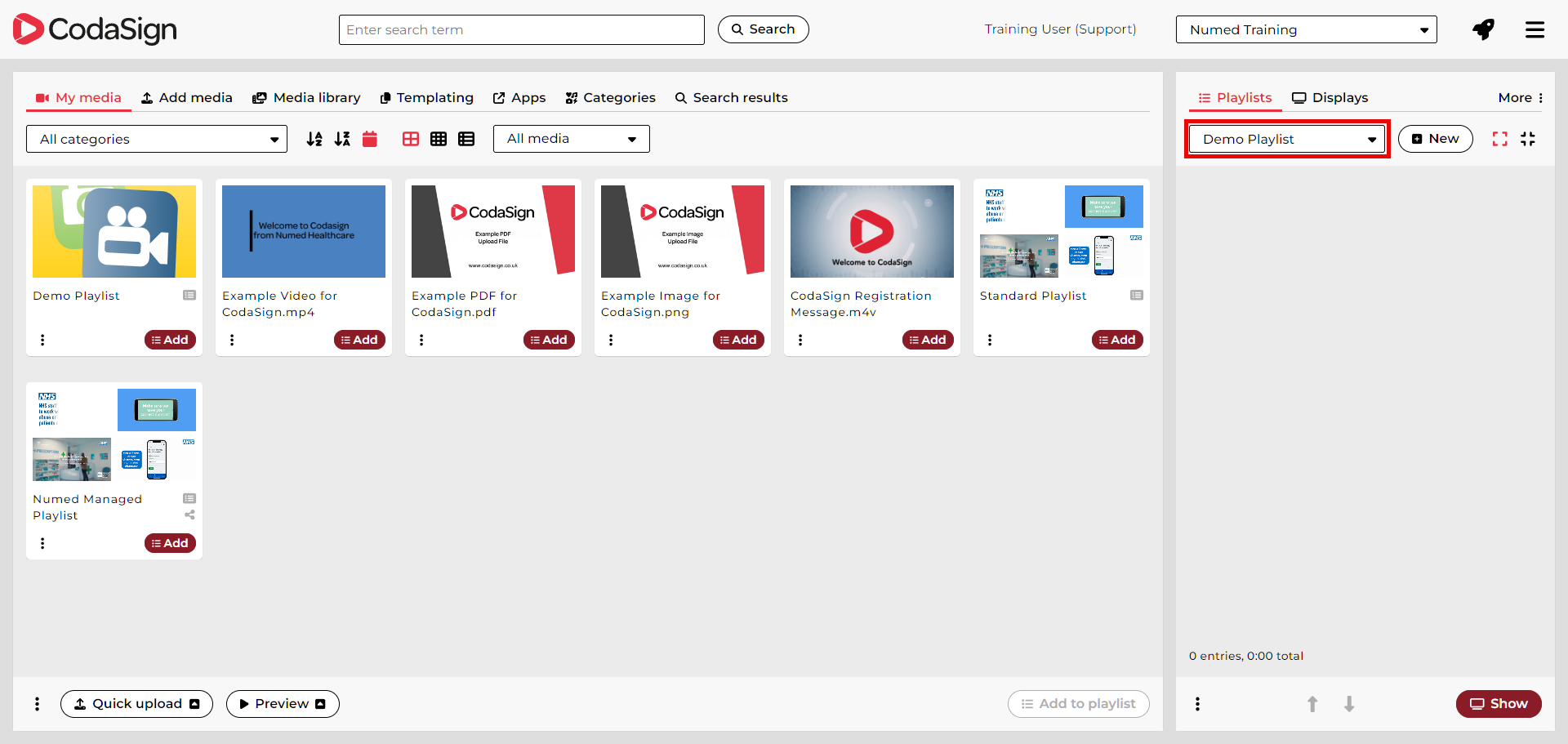
Once you have logged in and opened CodaSign, you will see the playlists available to your organisation by clicking the Choose playlist dropdown menu.
To create a new playlist, click the  button.

The Numed Managed Playlist is view‑only and cannot be edited.
When creating a new playlist, you will be prompted to enter a name. After naming it, click .
.
Once the playlist name appears on screen, you can begin adding or editing media
When the name of the playlist is showing, you can either add to or make changes to that playlist.
Adding Media to Your Playlist
To add media to a playlist:
- Find the media you want to add in your My media or the Media library.
- Click the
button (located at the bottom right corner of each media item).
- The media will immediately appear in the playlist panel on the right‑hand side
Other playlists can also act as media items and appear within My media.
You can also drag and drop media directly into your playlist:
- Start dragging the media item.
- A pink bar will appear within the playlist between the pieces of media.
- Drop the media where you want it to appear. (Drag‑and‑drop allows for precise positioning at the time of adding.)
When the media is added, it looks like
Managing the media in your playlist
Reordering Media
You can change the order of your playlist media by:
- Dragging a media item into the desired pink space between items, or
- Select a media item and use the up and down arrows at the bottom of the screen.
Removing Media
To remove an item:
- Select the media within the playlist.
- Click the Delete (bin) icon to the right of the media entry.
Viewing Playlist Total Duration
The bottom left corner of the playlist shows:
- Total number of media entries
- Total runtime of the playlist
Overriding the default duration
If you click the run time of a piece of media within the playlist.
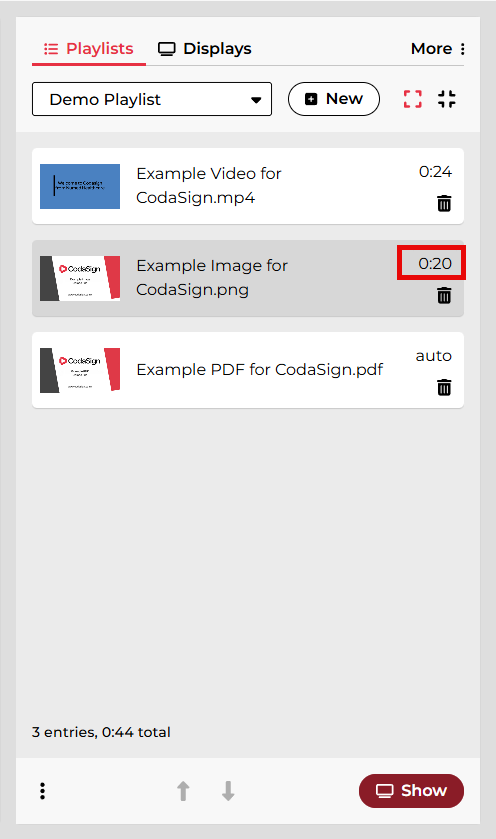
You will be able change the Duration of that media, and if you tick the Overide default duration box, it will only change the item in the playlist.
Click  once completed.
Options using the 3-dot menu
At the bottom left of the playlist, you’ll find a 3‑dot menu that provides additional options.
 Preview playlist
This option allows you to preview each piece of media in sequence.
This preview is not live and may not perfectly match what displays on your TV.
Some media types cannot preview in the browser but will still play correctly on the CodaSign Media Player.
 Rename playlist
Selecting Rename allows you to update the playlist’s name.
After editing, click  .
.
 Copy playlist
Use this option to create a duplicate playlist.
Enter a new name, click  , and CodaSign will:
- Create the copy
- Automatically open the duplicated playlist
 Export list as PDF
This option generates a PDF list of all media items in the playlist and downloads it to your PC.
 Delete playlist
To delete a playlist:
- Click Delete from the 3‑dot menu.
- Click
to complete the deletion.
Join Remote Support
Join live Chat
You can chat to one of our technical support team Monday – Friday 8.00am – 5.30pm. |