CodaSign Guide Part 6 - Sending to the Media Player
Once you have built your playlist and want to start playing it on your Media Player(s), follow the steps below.
Showing a Playlist on the Media Player
- Using the Choose a playlist drop-down menu, select the playlist you wish to display on your Media Player.
- Once the playlist has been selected, click the
button.
- Click on the display you wish to send the playlist to.
- You will then get a confirmation that the playlist has been sent to the Media Player.
- Repeat steps 2 and 3 if you want to send this playlist to any other Media Player in your organisation.
Reviewing your Displays
To view all of your Media Players and see which playlist is assigned to each one, click on  .
.
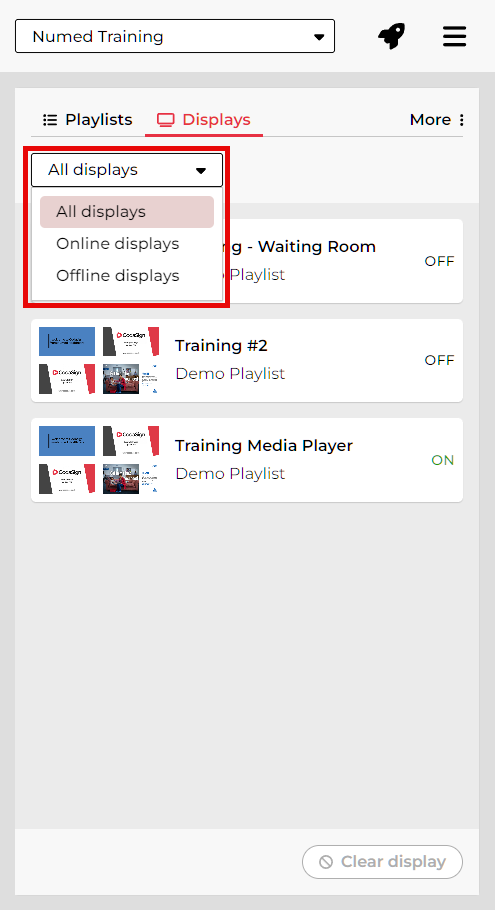
This will show a list of your Media Players, which playlist is assigned to them, and whether each player is ON (online) or OFF (offline).
You can use the drop‑down filter to view all displays, online displays only, or offline displays only.

For a Media Player to start playing content, it must be online.
If your Media Player is offline, please refer to the relevant guides or contact our support team via the chat button for assistance.
Blanking your Display
You can blank a Media Player to remove the playlist currently being shown. When blanked, the Media Player will display a plain black screen.
To do this:
- Click on your Media Player - it will highlight pink.
- Click on
.
Join Remote Support
Join live Chat
You can chat to one of our technical support team Monday – Friday 8.00am – 5.30pm. |