Mobil-o-Graph ABPM no PDF Error
There are two main causes as to why you won't get a PDF report file when exporting using the Intelligent Integration Interface.
 If you are a new user to the software, the first thing to do will be to check the settings of the HMS Client Server. Please go to the HMS Client Server Integration Settings for information on this.
However, if you had an error stating java.lang.IllegalArgumentException or AtomicPerformer after you click the Return GDT, then follow the steps below to resolve.
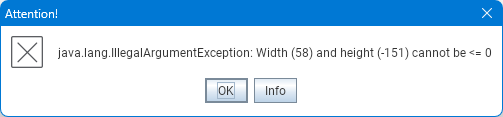
This error is caused by a label printer being the Windows default Printer.
Click here to see how to change the default printer
Please be aware that this setting could impact other programs that use the default printer. If you make this change, ensure that other applications use the correct printer.
- Ensure both Intelligent Integration Interface (I3) and HMS Client Server are closed.
- Open the Start Menu
and type printers & scanners into the search bar, then click Open.
- First, ensure that the option Allow Windows to manage my default printer is turned off.
- You will notice that the label printer is currently the default
- Now select the A4 paper printer in use by the PC (my example is the Microsoft Print to PDF)
- Click Set as default.
Once you've confirmed that the A4 printer is the default printer on the PC.
- Open the HMS Client Server via the icon on the desktop.
- Double-click on John Doe.
- Click Blood Pressure - PWA at the top.
- Select one of the 24h ABPM results on the left-hand side.
- Click the printer icon at the top of the screen.
- Change the Printer to the default A4 printer if it isn't set to that already.
- Click on Page format.
- Ensure that the Paper size is A4, the Orientation is Portrait, and the Margins are 5, then click OK.
- Click Save
- Close the HMS client server down
You can now attempt to export your ABPM report using the Intelligent Integration Interface (I3) again.
If you have any issues or run into problems while following this guide, please contact Numed support using the live chat button on this page.
Join Remote Support
Join live Chat
You can chat to one of our technical support team Monday – Friday 8.00am – 5.30pm. |